Secure a Pyronaut application with Keycloak
Learn how to create a Pyronaut application and secure it with an Authorization Server provided by Keycloak.
1. Getting Started
In this guide, we will create a Python application built with Pyronaut.
2. What you will need
To complete this guide, you will need the following:
-
Some time on your hands
-
GraalPy installed and the Pyronaut CLI available locally
3. Solution
We recommend that you follow the instructions in the next sections and create the application step by step. However, you can go right to the completed example.
-
Download and unzip the source
4. Run Keycloak on Docker
Follow the tutorial Get started with Keycloak on Docker.
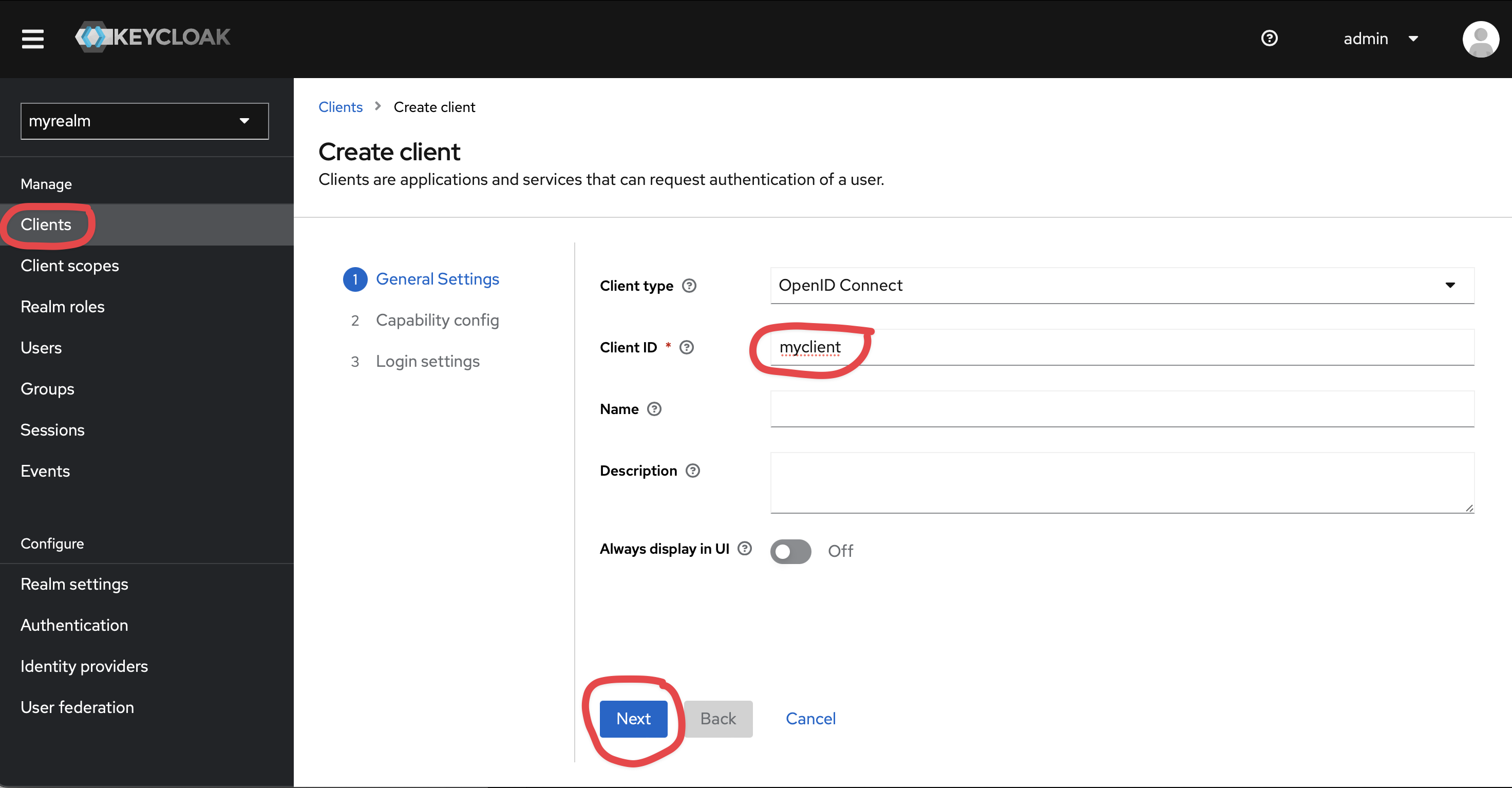
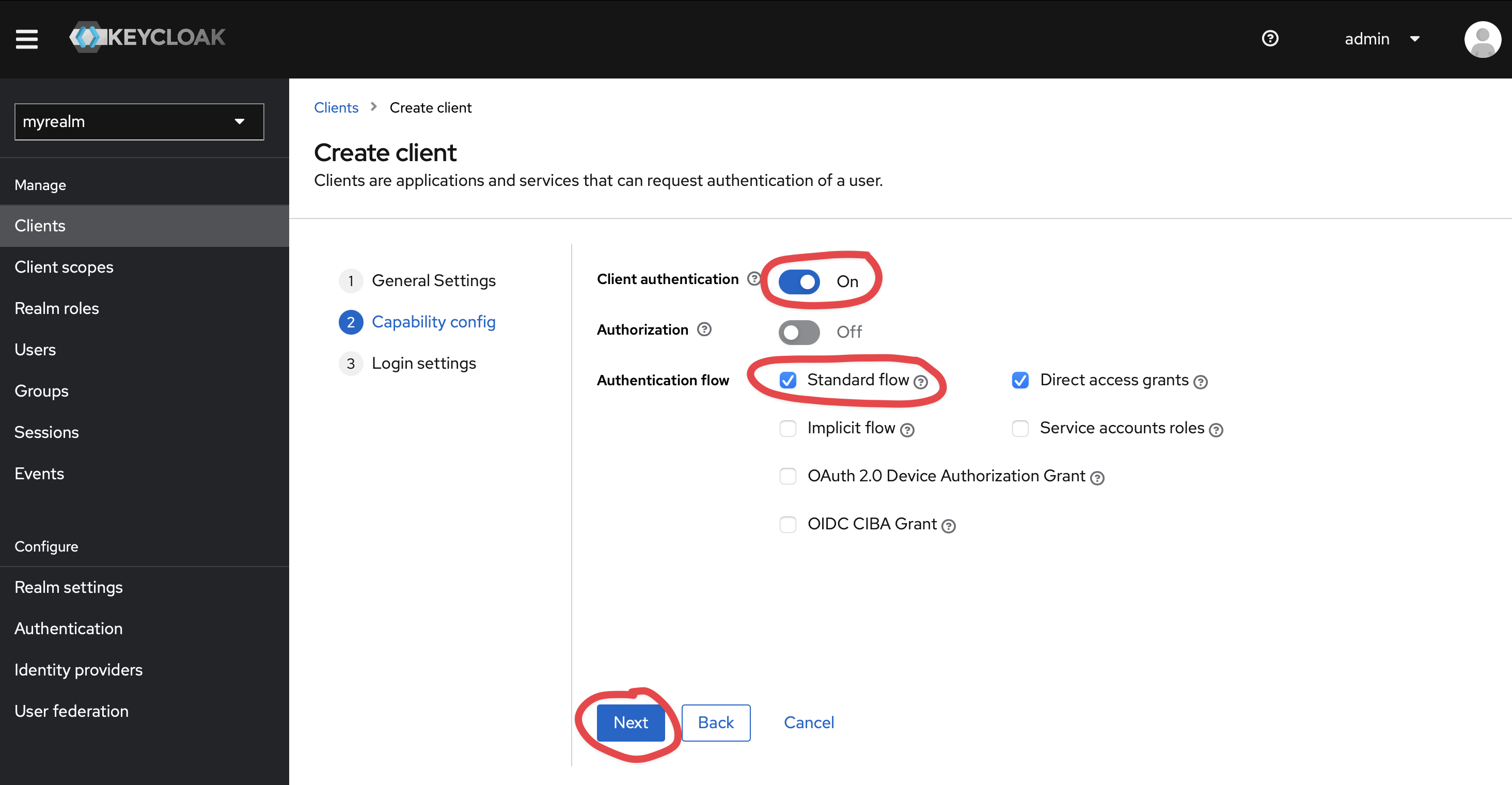
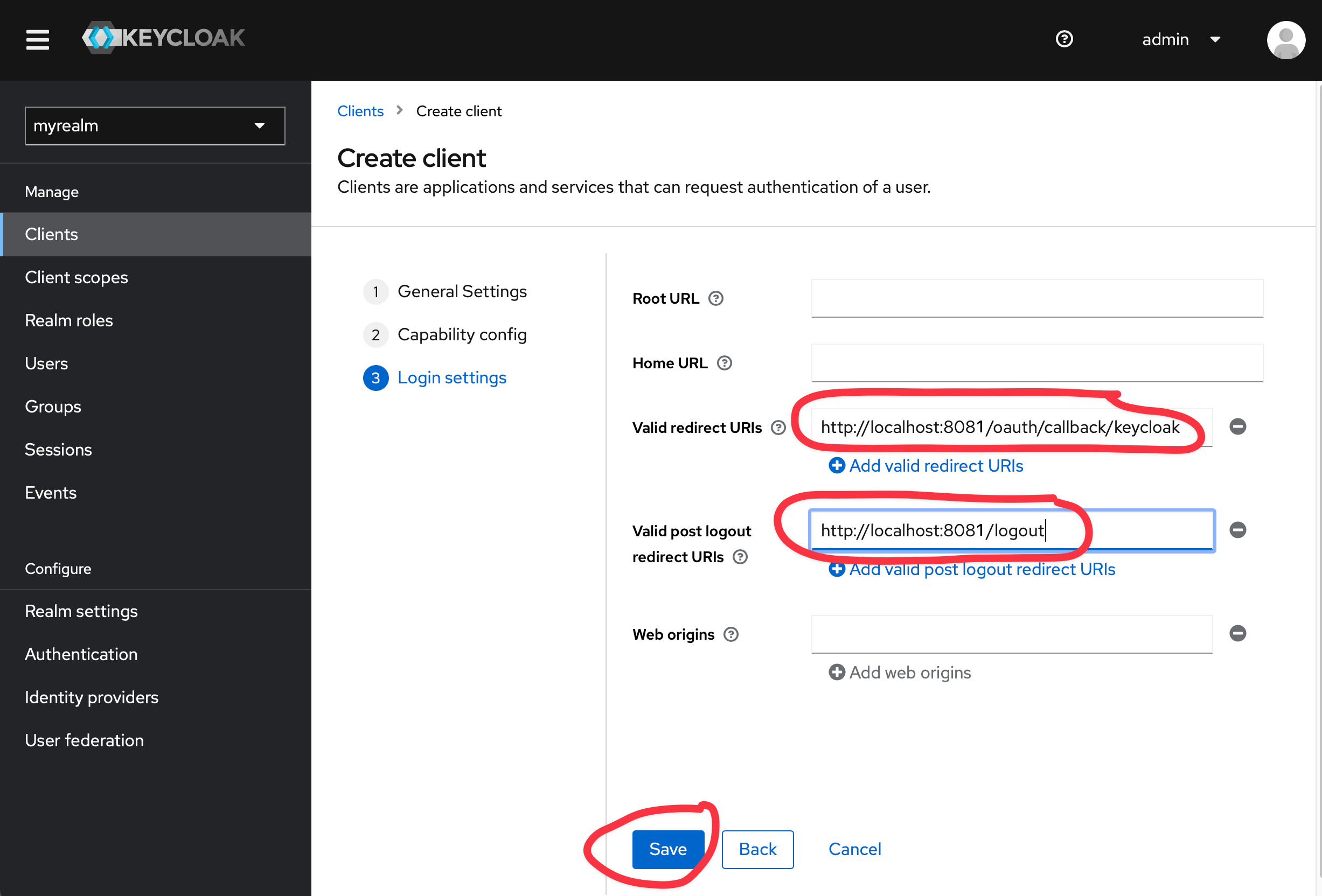
Replace the client creation in the tutorial with the steps illustrated in the following screenshots.
Set http://localhost:8081/oauth/callback/keycloak as Valid redirect URIs and http://localhost:8081/logout as Valid post logout redirect URIs.
5. Writing the Application
Create an application using the Pyronaut CLI (Command Line Interface) or Pyronaut Launch
pyronaut create example.micronaut.micronautguide --features=security-jwt,security-oauth2,views-jinjava5.1. Start in Port 8081
Create config/application-dev.toml. The Micronaut framework applies this configuration file only when the dev environment is active.
Configure the application to start in port 8081:
config/application-dev.toml
[micronaut.server]
port = 8081
5.2. Views
Although the Micronaut framework is primarily designed around message encoding / decoding, there are occasions where it is convenient to render a view on the server side.
The views-jinjava feature uses Micronaut Views' Jinjava integration to render Jinja templates from Python dictionaries.
Add the Jinjava dependency:
pyproject.toml
[tool.pyronaut.dependencies]
runtime = [
    "io.micronaut.views:micronaut-views-jinjava",
]
Configure HTML as the default template extension:
config/application.toml
[micronaut.views.jinja]
default-extension = "html"
5.3. OAuth 2.0
To use OAuth 2.0 integration, add the following dependency:
pyproject.toml
[tool.pyronaut.dependencies]
runtime = [
    "io.micronaut.security:micronaut-security-oauth2",
]
Also add JWT Micronaut JWT support dependencies:
pyproject.toml
[tool.pyronaut.dependencies]
runtime = [
    "io.micronaut.security:micronaut-security-jwt",
]
5.4. OAuth 2.0 Configuration
Add the following OAuth 2.0 configuration:
config/application-dev.toml
[micronaut.security]
authentication = "idtoken" (1)

[micronaut.security.oauth2.clients.keycloak] (2)
authorization-server = "KEYCLOAK"
client-secret = "${OAUTH_CLIENT_SECRET:secret}" (3)
client-id = "${OAUTH_CLIENT_ID:myclient}" (4)

[micronaut.security.oauth2.clients.keycloak.openid]
issuer = "${OIDC_ISSUER_DOMAIN:`http://localhost:8080`}/realms/${KEYCLOAK_REALM:myrealm}" (5)

[micronaut.security.endpoints.logout]
get-allowed = true (6)

[micronaut.security.oauth2.openid.additional-claims]
jwt = true (7)| 1 | Set micronaut.security.authentication as idtoken. The idtoken provided by Keycloak when the OAuth 2.0 Authorization code flow ends will be saved in a cookie. The id token is a signed JWT. For every request, the Micronaut framework extracts the JWT from the Cookie and validates the JWT signature with the remote Json Web Key Set exposed by Keycloak. JWKS is exposed by the jws-uri entry of Keycloak .well-known/openid-configuration. |
| 2 | The provider identifier should match the last part of the URL you entered as a redirect URL: /oauth/callback/keycloak. |
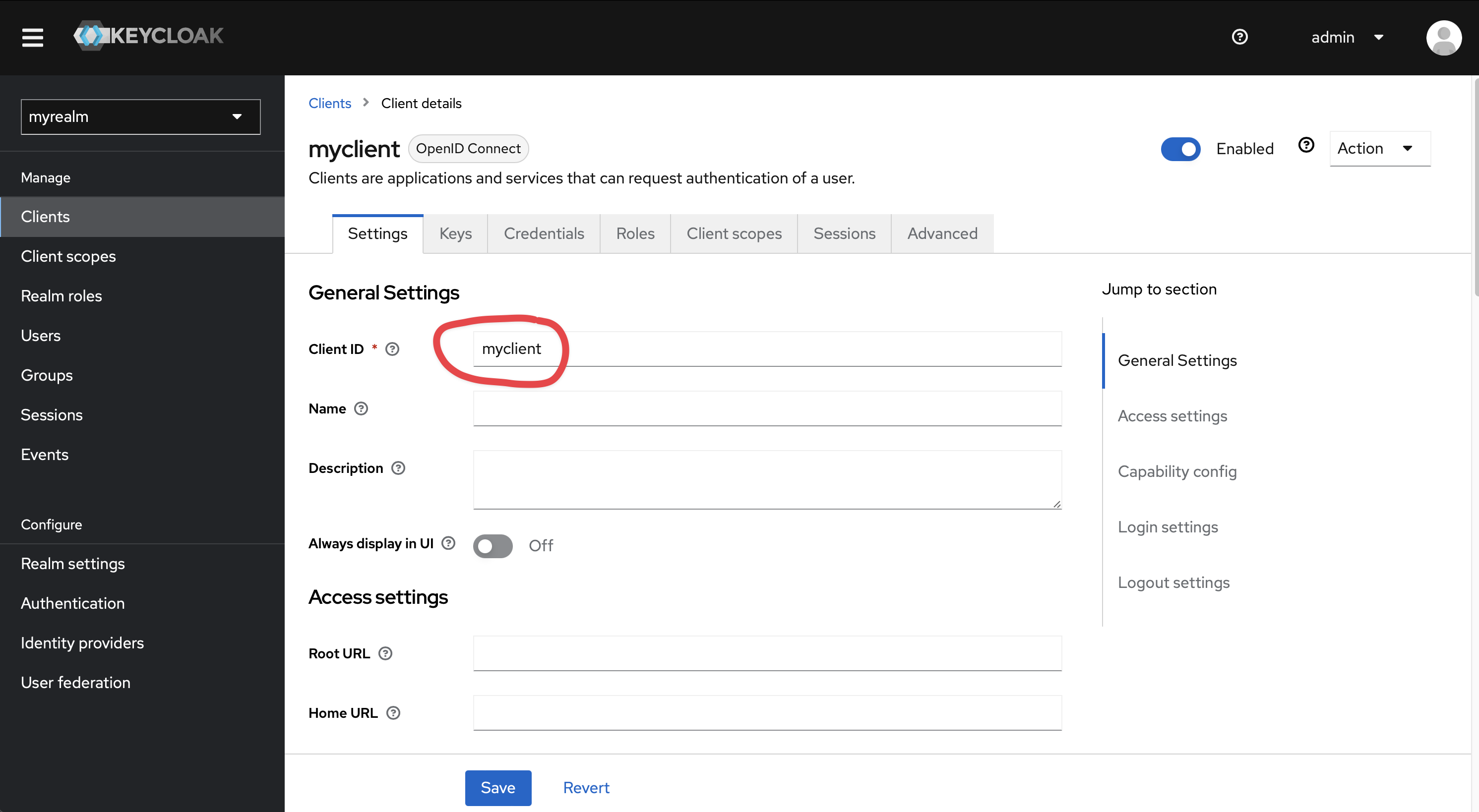
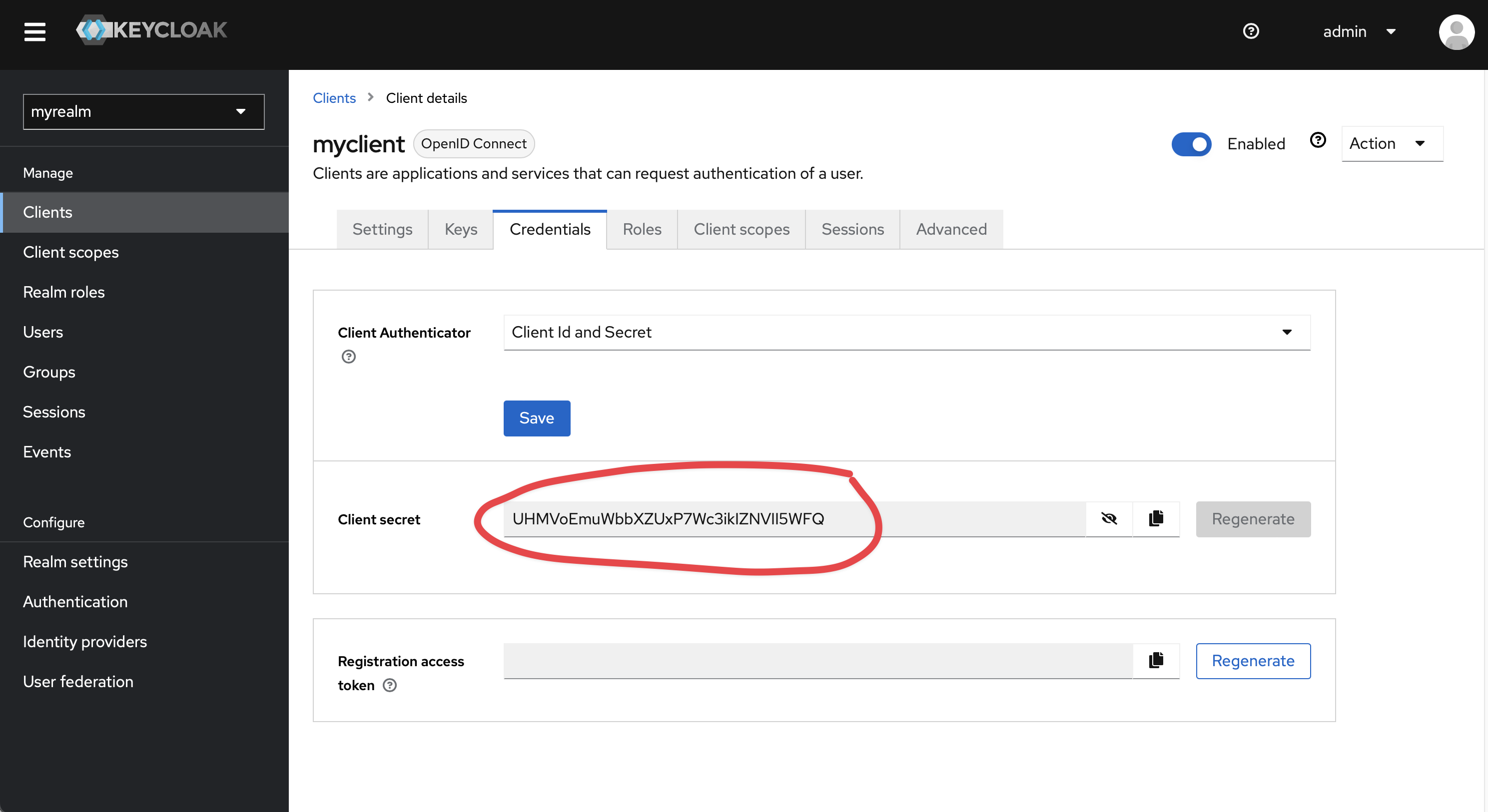
| 3 | Client Secret. See previous screenshot. |
| 4 | Client ID. See previous screenshot. |
| 5 | issuer URL. It allows the Micronaut framework to discover the configuration of the OpenID Connect server. |
| 6 | Accept GET requests to the /logout endpoint. |
| 7 | Retain the ID token in the authentication attributes so Micronaut’s built-in Keycloak logout endpoint can send the required id_token_hint. |
Check Keycloak realm’s OpenID configuration by visiting http://localhost:8080/realms/myrealm/.well-known/openid-configuration.
The previous configuration uses several placeholders. You will need to set up OAUTH_CLIENT_ID, OAUTH_CLIENT_SECRET, OIDC_ISSUER_DOMAIN, and KEYCLOAK_REALM environment variables.
export OAUTH_CLIENT_ID=XXXXXXXXXX
export OAUTH_CLIENT_SECRET=YYYYYYYYYY
export OIDC_ISSUER_DOMAIN=ZZZZZ
export KEYCLOAK_REALM=myrealm
You can obtain the realm name, client ID, and client secret in the Keycloak UI:
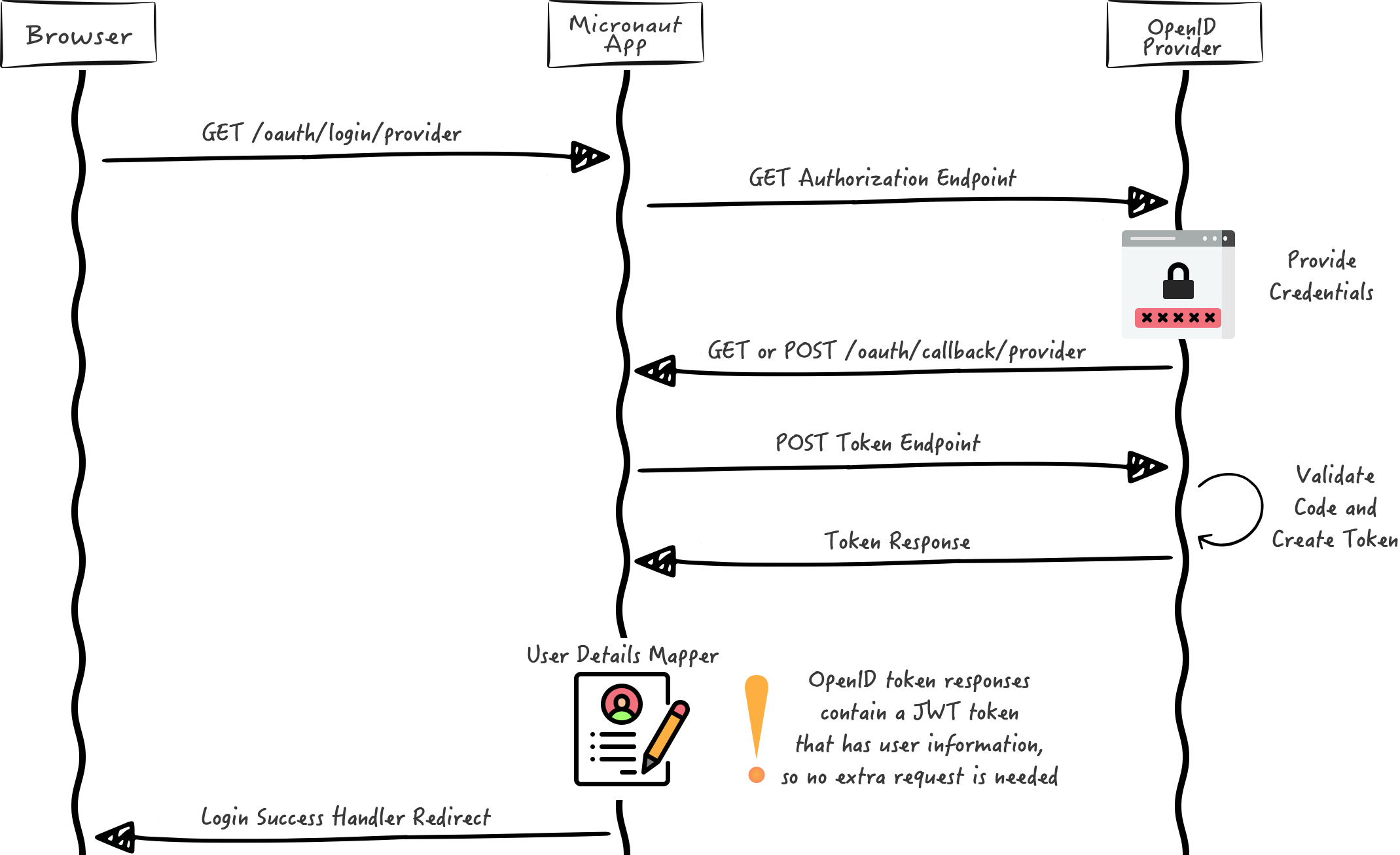
We want to use an Authorization Code grant type flow, which is described in the following diagram:
5.5. Home
Create a route function for / that returns an empty Python dictionary. @View selects the Jinja template, which displays the authenticated user’s preferred username when available.
src/example/micronaut/home_controller.py
from micronaut.http.annotation import Get
from micronaut.security.annotation import Secured
from micronaut.security.rules import SecurityRule
from micronaut.views import View


@Secured(SecurityRule.IS_ANONYMOUS)  (1)
@View("home")  (2)
@Get("/")  (3)
def index() -> dict:
return {}| 1 | Annotate with io.micronaut.security.Secured to configure secured access. The SecurityRule.IS_ANONYMOUS expression will allow access without authentication. |
| 2 | Use View annotation to specify which template to use to render the response. |
| 3 | The @Get annotation maps the index method to an HTTP GET request on /. |
Create a Jinja template. Use the e filter to escape the username for HTML:
config/views/home.html
<!DOCTYPE html>
<html lang="en">
<head>
    <title>Home</title>
</head>
<body>
<h1>Micronaut - Keycloak example</h1>

{% if security %}
<h2>username: <span>{{ security.attributes.preferred_username | e }}</span></h2>
{% else %}
<h2>username: Anonymous</h2>
{% endif %}

<nav>
    <ul>
        {% if not security %}<li><a href="/oauth/login/keycloak">Enter</a></li>{% endif %}
        {% if security %}<li><a href="/oauth/logout">Logout</a></li>{% endif %}
    </ul>
</nav>
</body>
</html>
The controller returns an empty dictionary, but the template can still access security:
-
The SecurityViewModelProcessor injects into the model a
securitymap with the authenticated user. See User in a view documentation.
5.6. Keycloak Logout
The authorization-server = "KEYCLOAK" setting selects Micronaut Security’s built-in Keycloak end-session endpoint. Together with the retained ID token, it supports provider logout without a custom endpoint resolver.
5.7. Controller Test
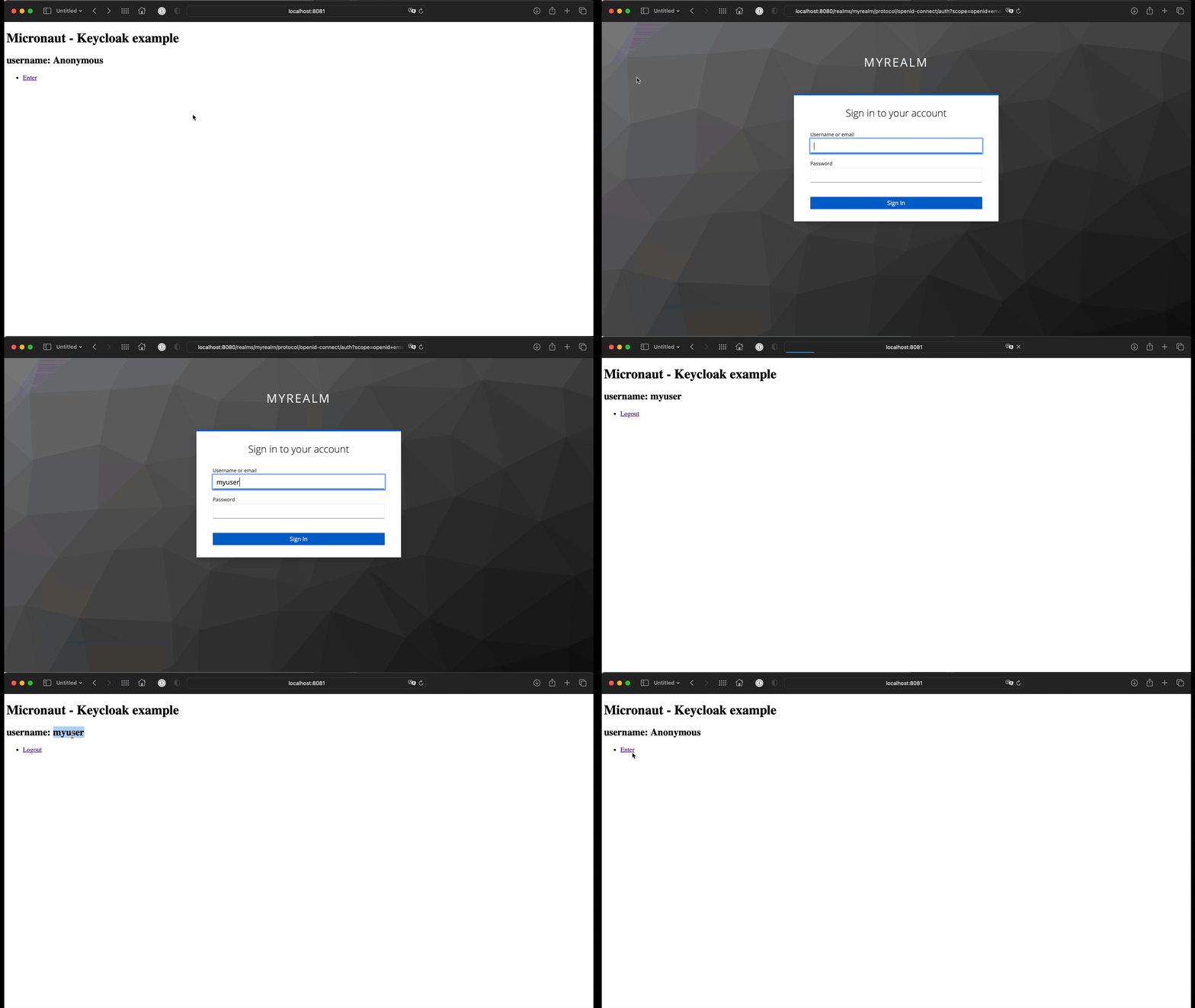
The test verifies the anonymous HTML page and its login link. It activates only the test environment, so the OAuth client configuration in config/application-dev.toml is not loaded and no Keycloak server is needed. Check the real login and provider logout manually using the running Keycloak server below.
tests/example/micronaut/test_home_controller.py
import pytest
import requests

from pyronaut.test import MicronautTest, micronaut_test_fixture


@pytest.fixture
def my_context(request):
    fixture = micronaut_test_fixture(
        request,
        MicronautTest(environments=["test"], transactional=False),
    )
    yield fixture
    fixture.stop()


@pytest.fixture
def client(my_context):
    with requests.with_context(my_context) as session:
        yield session


def test_home_page_renders_anonymous_user(client):
    response = client.get("/")

    assert response.status_code == 200
    assert response.headers["content-type"].startswith("text/html")
    assert "username: Anonymous" in response.text
    assert 'href="/oauth/login/keycloak"' in response.text
    assert 'href="/oauth/logout"' not in response.text
6. Testing the Application
To run the tests:
pyronaut install
pyronaut validate-config
pyronaut test
7. Running the Application
Start the application on port 8081 with the dev environment enabled:
export MICRONAUT_ENVIRONMENTS=dev
pyronaut run
On Windows PowerShell, set $env:MICRONAUT_ENVIRONMENTS = "dev" before running pyronaut run.
8. Next Steps
Read Micronaut OAuth 2.0 documentation to learn more.
Check out the Keycloak website.
9. License
| All guides are released with an Apache License 2.0 for the code and a Creative Commons Attribution 4.0 license for the writing and media (images). |